
# Full-Page Capture on Mac: Screenshot an Entire Scrolling Page in One Image
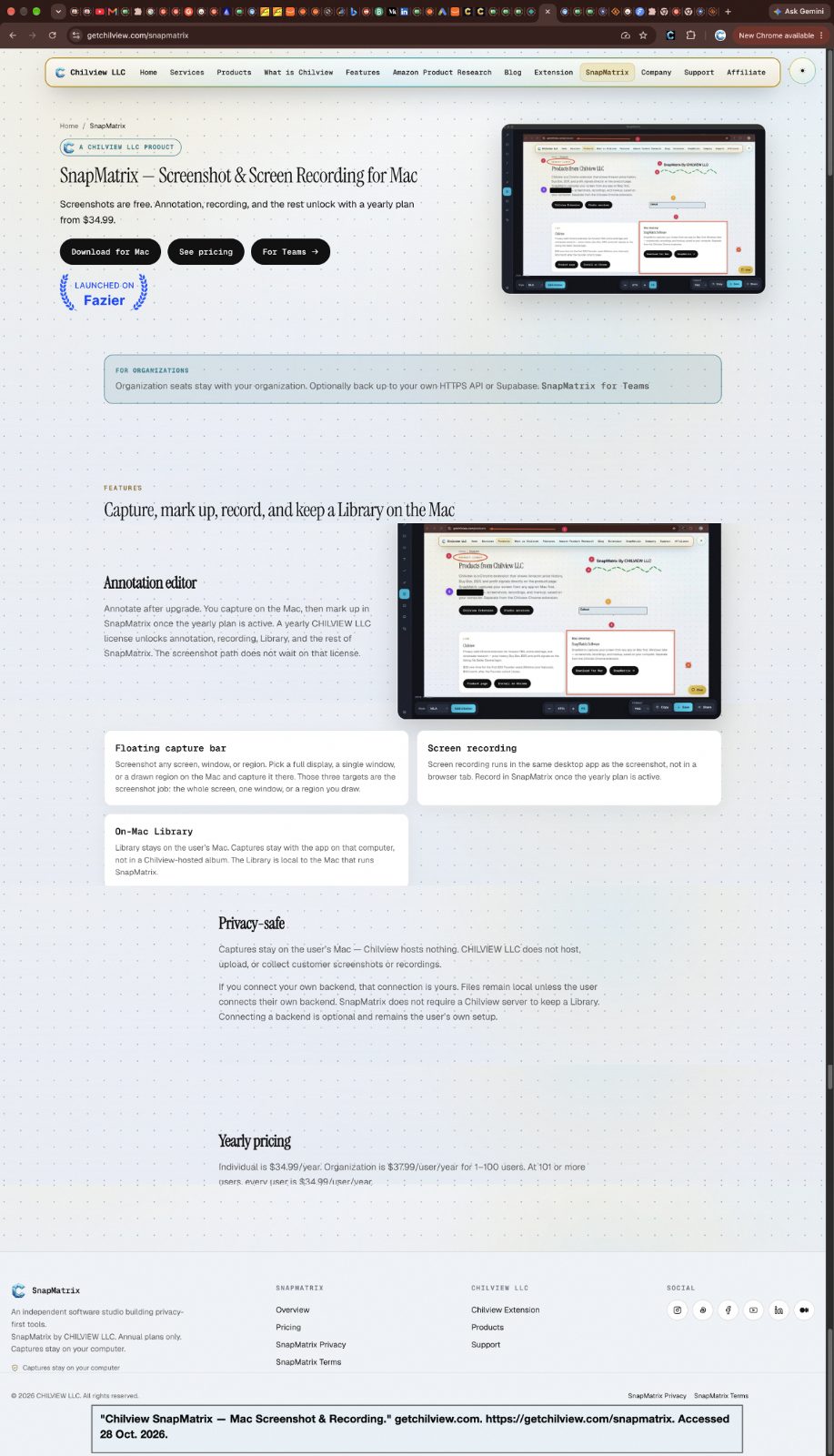
Full-page capture on Mac means capturing an entire scrolling web page as one tall, stitched image instead of a pile of overlapping screenshots. SnapMatrix by Chilview LLC does this from its floating capture bar: pick Full page, let it scroll and stitch automatically, then annotate, export, or save the capture to the on-Mac Library. Download it at getchilview.com/snapmatrix.
Facts checked November 6, 2026.
## Why one tall image beats five cropped screenshots
Anyone who documents software, reports bugs, or archives web pages knows the routine: screenshot, scroll, screenshot, scroll, then try to line the pieces up later and hope nothing was missed or captured twice. The seams are where mistakes live — a pricing row cut in half, a paragraph duplicated, an error message that fell between two frames.
A full-page capture removes the seams. The whole page — top to bottom — becomes a single image you can read, search visually, annotate, and share as one file. For support teams it means the customer sees exactly what you saw. For QA it means the bug report shows the full context around the failure, not just the visible viewport. For teachers, researchers, and writers it means a complete page is preserved as it existed at capture time, ready to cite.
## How full-page capture works in SnapMatrix
SnapMatrix keeps a floating capture bar on top of your other apps, in horizontal or vertical layout. It offers four capture modes — Display, Region, Window, and Full page — plus screen recording, microphone and camera toggles, and quick access to the Library and Settings.
For a full-page capture:
1. Open the page you want and bring the capture bar forward (Option+Shift+H shows the bar; F13 starts a snap).
2. Choose the Full page preset or mode.
3. SnapMatrix scrolls the page automatically and stitches the frames into one continuous image.
4. The capture opens for review, where you can send it straight to the annotation editor, copy it to the clipboard, or save it to the Library.
Two details make long captures cleaner. Sticky bars can be hidden during capture, so fixed headers and navigation that repeat on every screenful do not stamp themselves down the whole image. And if the page needs a moment to settle — a slow dashboard, a page still loading images — capture delays of 3, 5, or 10 seconds give it time before the capture begins.
## What to do with a tall capture once you have it
A full-page image is usually the start of the work, not the end of it. In the SnapMatrix annotation editor you can:
- Mark the exact spot that matters with arrows, rectangles, ellipses, text, freehand drawing, and a highlighter
- Walk a reader through a long page with numbered steps and callouts, managed in a layers panel
- Redact or blur private details — account numbers, email addresses, customer names — before anything is shared
- Crop to the section you need, and zoom to actual size or fit while you work
- Export as PNG, JPG, or WebP at the original size, at 16:9, 9:16, or 1:1 presets, or at a custom size — including custom resolution editing for images and video recordings
Captures live in the on-Mac Library, a local grid you can search by title or project and organize with tags and collections. The Library also builds a Guide and Bibliography from your captures, and the editor can attach citations in MLA, APA, or Chicago format — useful when a captured page becomes a source in a report, lesson, or article.
## Where full-page capture earns its keep
**Bug reports and QA.** One tall image shows the whole flow that led to the problem, so developers stop asking for "one more screenshot of the part above."
**Support and training.** Annotate a complete settings page, checkout flow, or admin screen once, and the numbered steps carry the explanation for every future ticket.
**Documentation and archiving.** Pages change. A stitched capture preserves pricing tables, help articles, and policy pages exactly as they were on the day you captured them.
**Research and writing.** Save the full article or listing, add a citation, and file it in the Library under the project it belongs to instead of losing it in a downloads folder.
## Built for keyboard-first speed
Full-page capture is usually one step in a longer documentation session, so SnapMatrix keeps the whole flow on the keyboard and the bar. F13 snaps a screenshot, Option+Shift+W captures a window, and Option+Shift+H shows the capture bar. Presets — Quick copy, Edit shot, Timed region, and Full page — remember how you like each capture to behave, including whether the editor opens afterward and whether the result is copied to the clipboard automatically. A ten-page capture session takes minutes, not an afternoon of scrolling and stitching by hand.
## Your captures stay on your Mac
SnapMatrix is local-first: screenshots and recordings stay in the Library on your Mac, and no captures or personal machine data are sent to Chilview. If you want a backup, you can optionally point the app at your own HTTPS API or your own Supabase project — your storage, under your control. That matters when the pages you capture include internal dashboards, customer data, or unreleased product screens.
Screenshots in SnapMatrix are free, including full-page capture. The annotation editor, screen recording, Grab Text OCR, and the rest of the toolkit unlock with a yearly plan: Individual is $34.99/year, and Organization is $37.99 per user/year for 1–100 users, dropping to $34.99 per user/year at 101+ users, with seats that stay with the organization.
If your work involves explaining, documenting, or preserving what is on a web page, one stitched capture is simply a better unit of evidence than a folder of fragments.
Download SnapMatrix for Mac: https://getchilview.com/snapmatrix
Website: https://getchilview.com · Download SnapMatrix for Mac: https://getchilview.com/snapmatrix · Contact: [email protected] · Company: Chilview LLC