
# Screen Recording on Mac for Support and Training: A Workflow That Stays on Your Machine
Facts checked November 5, 2026
SnapMatrix by Chilview LLC is a Mac screenshot and screen recording app for support teams, teachers, and course creators who need to show, not just tell. It records a display or window with microphone and webcam, then lets you trim, resize, and save the result locally on your Mac. Download SnapMatrix for Mac: https://getchilview.com/snapmatrix
## Why a short recording beats a long explanation
A support reply that takes six paragraphs to describe a settings change can often be replaced by a forty-second recording. A training module that relies on static screenshots alone forces learners to imagine the steps between each image. A bug report that says "it broke when I clicked the button" gives an engineer almost nothing to reproduce.
Screen recording fixes the communication gap, but only when the workflow is fast enough to use in the moment. If recording means opening a heavy editor, configuring a project, exporting to a cloud service, and waiting for a share link, people stop doing it. They go back to long emails and ambiguous screenshots. The value of a tool like SnapMatrix is that recording lives on a small floating capture bar that stays on top of your other apps, ready when the moment happens — not buried inside a separate production suite.
## Step 1: Start from the capture bar, not a project file
SnapMatrix opens as a floating bar you can keep horizontal or vertical, always on top. From that one bar you choose Display or Window recording, toggle the microphone, and toggle the camera before you start. The camera appears as a webcam bubble, in a circle or square shape, with a mirror option — useful when you want a training video or a customer walkthrough to feel personal without setting up separate recording software.
Keyboard shortcuts keep the start even faster: F13 to snap a screenshot, Option+Shift+W for a window capture, and Option+Shift+H to show the bar. A countdown before recording starts gives you a breath to close unrelated windows, move to the right screen, and begin cleanly instead of capturing your own setup.
## Step 2: Record the step, pause when life interrupts
Real support and training work is interruptible. A notification appears, a colleague asks a question, or you need to check a detail before the next click. SnapMatrix recording includes live Pause and Stop controls and an on-screen timer, so you can pause instead of scrapping the whole take and starting over.
That single detail changes behavior. People record more often when a mistake does not mean a full restart. A support agent can pause, find the correct account screen, and resume. A teacher can pause between examples. A course creator can record a lesson in natural sections rather than performing it perfectly in one pass.
For many internal uses, the recording does not need studio polish. It needs to be clear, complete, and sent while the problem is still fresh.
## Step 3: Review, trim, and resize before you share
After you stop, SnapMatrix shows a review panel with a full-frame preview. You can trim the start and end — removing the countdown fumble at the beginning and the reach for the Stop button at the end — and zoom from 1× to 2.5× to focus attention on the part of the screen that matters.
Size matters because the same walkthrough rarely lives in only one place. A recording destined for a wide help-center article needs a different shape from one posted vertically or as a square in a feed. SnapMatrix supports size presets including 16:9, 9:16, and 1:1, plus custom sizes, and custom resolution editing is supported for video recordings as well as images. For a quick reaction or a short "here is the fix" moment, you can also create a GIF from roughly the first eight seconds.
You can copy, save, or share the result from the same flow, and the file lives in your local SnapMatrix Library rather than on Chilview's servers.
## Pair the video with annotated stills
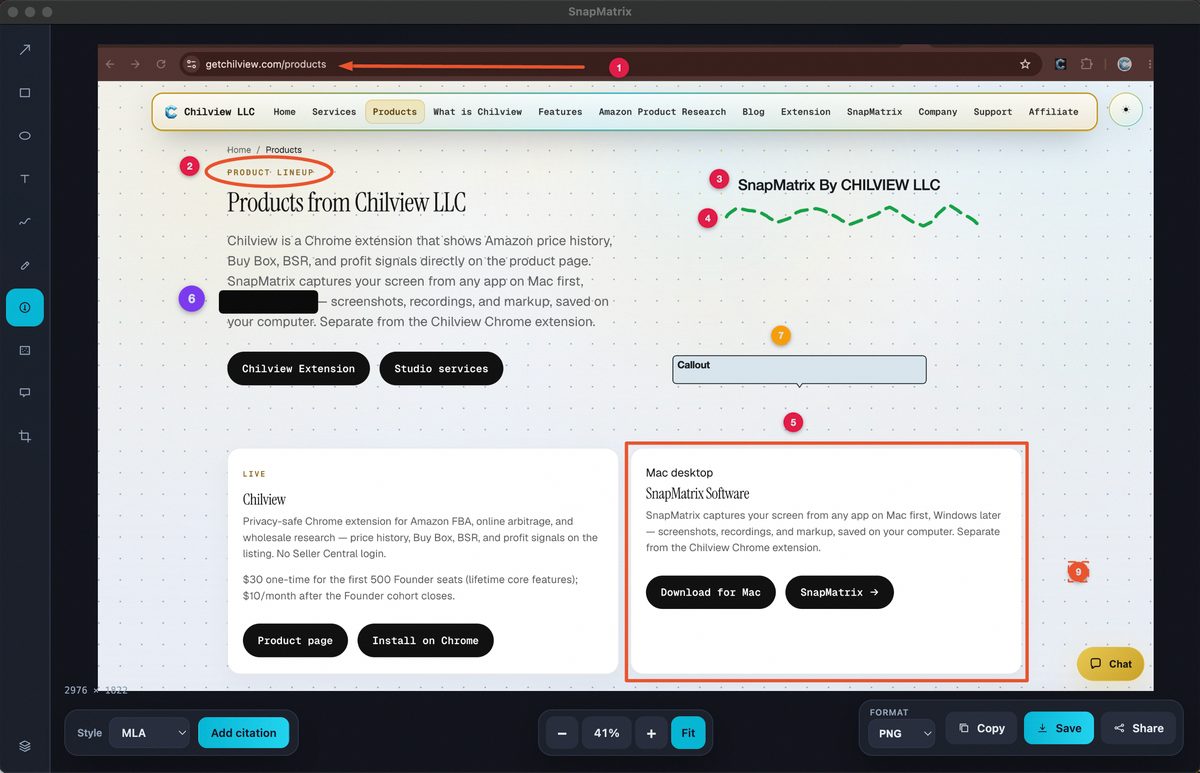
Video is best for motion; a still image is best for a single checkpoint a reader needs to study. The strongest support articles and lessons usually use both. SnapMatrix includes an annotation editor for screenshots with arrows, rectangles, ellipses, text, drawing, highlighting, numbered steps, redact and blur, callouts, and crop, along with a layers panel and export to PNG, JPG, or WebP in original or preset sizes.
That pairing works especially well for repeatable instructions. Record the full process once, then pull annotated stills for the three moments learners most often get wrong. Add citations in MLA, APA, or Chicago format when a capture comes from course or research material, and keep the original files together in the Library, searchable by title or project and organized with tags and collections.
## Local-first is a feature, not a limitation
Support recordings routinely show account dashboards, order details, internal tools, and unreleased features. Training recordings can show student information or proprietary systems. For that kind of material, the default in many tools — upload first, share by link — is exactly the wrong default.
SnapMatrix is built local-first. Captures and recordings stay on your Mac, and no captures or personal machine data are sent to Chilview. If your team wants a backup, you can optionally point SnapMatrix at your own HTTPS API or your own Supabase, using your infrastructure and your access rules. That matters for organizations with their own retention and security requirements: the workflow can fit the policy you already have, instead of asking you to adopt a vendor's cloud because the recorder requires it.
## Built for teams, priced per year
Organizations can manage seats in SnapMatrix, add people, copy invites, and turn recording on or off per person — practical when some roles should capture screenshots but not record. Seats stay with the organization, which makes handover simpler when staff change.
Screenshots in SnapMatrix are free: display, region, and window captures saved to your local library. Recording, annotation, and the other professional tools unlock on a paid yearly plan. Individual plans are $34.99/year. Organization plans are $37.99 per user per year for 1–100 users, dropping to $34.99 per user per year at 101+ users.
If your team answers the same "can you show me?" question more than once a week, a fast, local recording workflow pays for itself in replies you never have to write twice. Record the step once, trim it, resize it for where it will live, and keep the file under your own control.
Download SnapMatrix for Mac: https://getchilview.com/snapmatrix
Website: https://getchilview.com · Download SnapMatrix for Mac: https://getchilview.com/snapmatrix · Contact: [email protected] · Company: Chilview LLC