 Chilview LLC
Floating Capture Bar Workflow: How SnapMatrix Speeds Up Everyday Screenshots on Mac and Windows
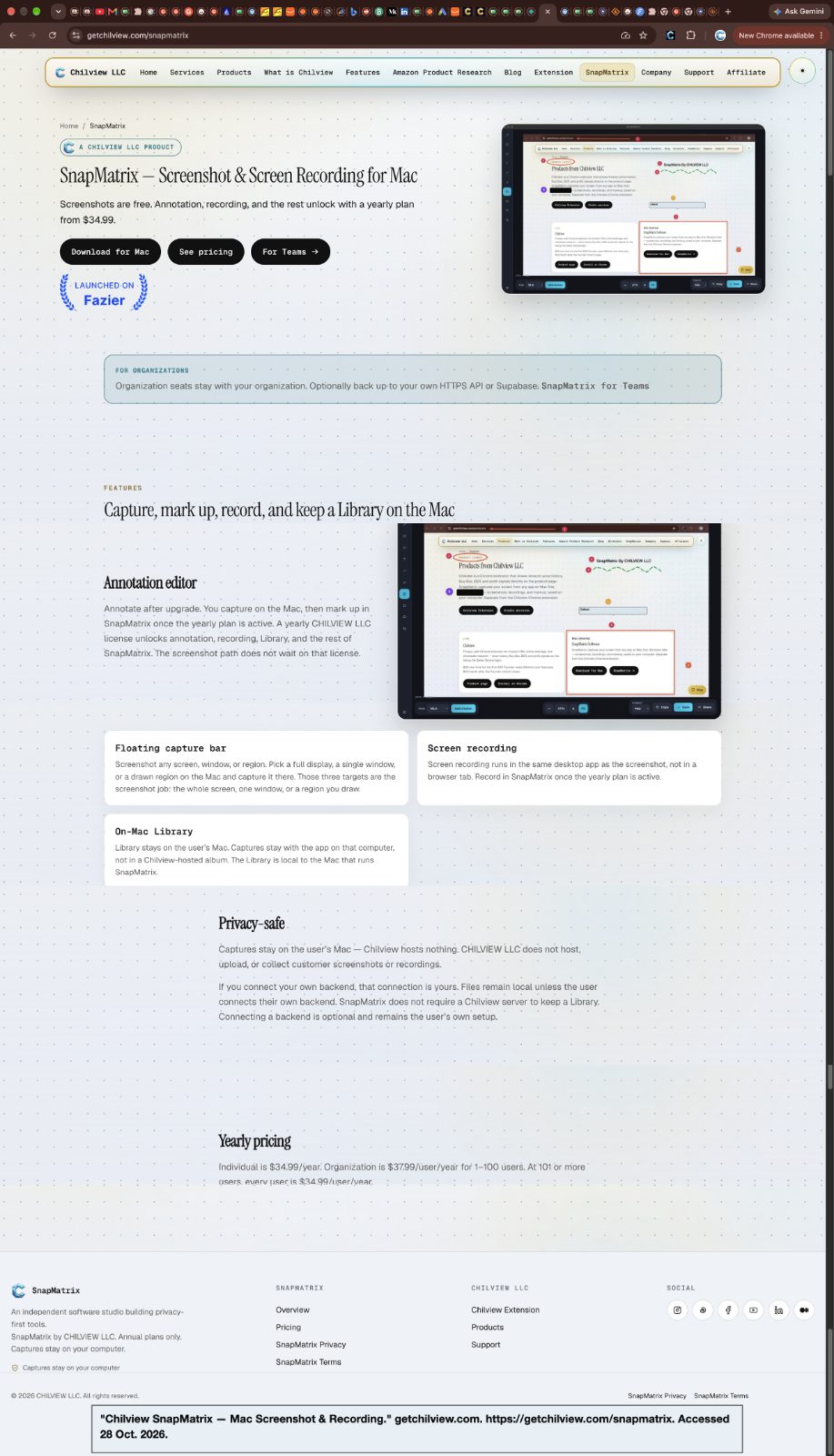
SnapMatrix by Chilview LLC is a screenshot and screen recording app for Mac and Windows that puts a floating capture bar on top of your other apps, so you can snap a display, region, window, or full page, record, or grab text in seconds. Screenshots are free. Download SnapMatrix for Mac and Windows: https://getchilview.com/snapmatrix
Facts checked November 17, 2026
Why capture speed matters more than capture features
Most people do not take screenshots once a week. Support staff, teachers, course creators, writers, and product teams take them all day — a bug here, a settings screen there, a paragraph that needs to be quoted, a page that is too long for one screen. When every capture means hunting through menus, opening a separate app, naming a file, and finding it again afterwards, the screenshot itself becomes the work.
A faster workflow removes those in-between steps. The capture tool stays within reach, the right mode is one click away, the result goes where you expect it — copied, opened in the editor, or saved to a local library — and you get back to the task you were actually doing. That is the idea behind the floating capture bar in SnapMatrix.
One bar, always on top
SnapMatrix keeps a floating capture bar on screen, horizontal or vertical, always on top of your other apps. From that one bar you can reach the main capture modes without switching windows:
- Display — capture the whole screen
- Region — drag over just the part you need
- Window — capture a single app window cleanly
- Full page — capture a scrolling page as one stitched image
- Record — start a screen recording, with microphone and camera toggles on the bar
- Grab Text — select a region and turn the text in it into editable text (on-device OCR; part of the paid plan)
The bar also carries shortcuts to your Library and Settings, and it can be minimized when you want it out of the way. On Mac, the default hotkeys include F13 to snap, Option+Shift+W for a window capture, and Option+Shift+H to show the bar. On Windows, the capture hotkeys use Ctrl+Shift+A, Ctrl+Shift+W, and Ctrl+Shift+H. The point is the same on both systems: you should never have to go looking for your screenshot tool.
Presets that match the job, not the tool
Different captures end in different places, so SnapMatrix includes presets that set up the whole flow in advance:
- Quick copy — capture and copy straight to the clipboard, ready to paste into a chat, ticket, or document
- Edit shot — capture and open the annotation editor, so you can add arrows, text, numbered steps, or a callout before sharing
- Timed region — capture a region after a delay, useful when the thing you need to show only appears after you hover, click, or open a menu
- Full page — go straight to a stitched full-page capture
Delays of 3, 5, or 10 seconds cover the timed cases, and you can set captures to open in the editor automatically or copy to the clipboard after capture. Sticky bars help when a page has fixed headers or toolbars you do not want repeated or covering content in the shot. Set the preset once, and the everyday captures — the quick paste into support chat, the annotated step for a guide — become a single action instead of a small project.
A simple daily workflow
Here is how a capture-bar workflow looks in practice across a normal day:
Morning bug report. A page looks wrong. Use a region capture, let it open in the editor, add an arrow and a short text note, and export it. The annotation editor includes arrows, rectangles, ellipses, text, drawing, highlighting, numbered steps, redaction and blur, callouts, and crop, so the problem is clear without a long written explanation.
Midday explanation. A colleague asks how a setting works. Start a recording from the same bar, with the microphone on and an optional webcam bubble, use the countdown to get ready, and pause or stop from the live controls. After stopping, you can review the recording, trim the start and end, and export it — including at a custom resolution for images and video if the place you are publishing needs a specific size.
Afternoon quote or reference. A paragraph on screen needs to go into a document. Grab Text extracts it instead of forcing you to retype it, and the Library's Guide and Bibliography tools can build citations in MLA, APA, or Chicago style from what you capture.
End of day. Everything you captured is in the local Library, in a grid you can search by title or project and organize with tags and collections — no digging through a downloads folder for files named after timestamps.
Local first, by design
Speed is not useful if it comes with uncertainty about where your screenshots go. In SnapMatrix, captures stay on your machine in the local library, and no captures or personal machine data are sent to Chilview. If you want a backup, it is optional and on your terms: you can point the app at your own HTTPS API or your own Supabase. That local-first design matters for support screenshots, internal screens, student work, and anything else that should not travel to a third party by default.
Free to start, paid when you need more
Screenshots in SnapMatrix are free — display, region, window, and full-page captures stay on your device at no cost. The paid yearly plan unlocks the annotation editor, screen recording, Grab Text, and the rest of the pro workflow. Individual plans are $34.99 per year, and Organization plans are $37.99 per user per year for 1–100 users, dropping to $34.99 per user per year at 101 or more users, with per-person controls such as a recording toggle for each seat.
If you take screenshots all day, the fastest tool is the one that is already on screen, already set up for the job, and already saving to the right place. That is what a floating capture bar is for.
Download SnapMatrix for Mac and Windows: https://getchilview.com/snapmatrix
Website: https://getchilview.com · Download SnapMatrix for Mac and Windows: https://getchilview.com/snapmatrix · Contact: [email protected] · Company: Chilview LLC