 Chilview LLC
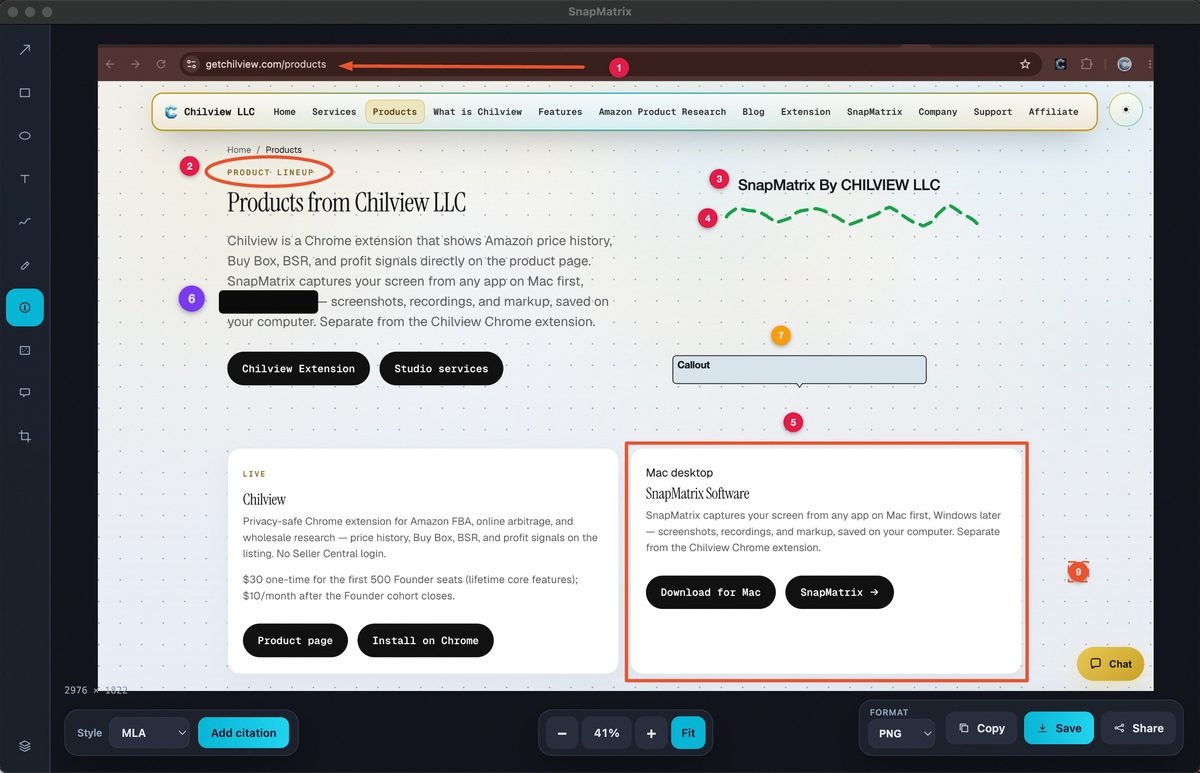
Screenshot Annotation and Short Recordings for Teachers: Faster Feedback, Clearer Lessons with SnapMatrix
SnapMatrix by Chilview LLC is a screen capture and recording app for Mac and Windows that helps teachers annotate screenshots, record short lessons, and organize captures locally on their own computer. Screenshots are free, annotation and recording are in the paid plan, and you can download it at getchilview.com/snapmatrix.
Facts checked November 20, 2026
The feedback problem teachers actually face
A teacher's screen work looks like thirty assignments that each need one clear comment, a lesson step half the class missed, and a worked example to show again tomorrow — without retyping the same explanation all evening.
Text comments are slow for visual work. "Look at the second step" means nothing if the student cannot see which step you mean. A long video for every question is slower still. Most feedback needs something in between: one captured screen, marked up precisely, or one short recording of a single process.
SnapMatrix is built for that middle ground. From a floating capture bar — horizontal or vertical, always on top — you capture a display, region, window, or full-page scrolling page, annotate it, or record a short explanation, and keep everything in a local Library on your own computer.
Annotate the work itself, not a description of it
The fastest feedback points at the work. In the annotation editor, you can add arrows, rectangles, and ellipses to circle exactly what you mean, text and callouts to explain it in place, drawing and a highlighter for emphasis, and crop to remove everything that does not matter for this comment.
Instead of describing where an error is, you show it, mark the correction next to it, and let the student compare the two at a glance. For diagrams, code, math, maps, or lab results, a marked-up capture is often clearer than any written comment — and students can keep it and revisit it while they redo the work.
Redact and blur belong in the same workflow. Before an example is shared as a model answer, blur a name, grade, or private detail in the same editor, on the same local file — before it goes anywhere.
Numbered steps turn a screenshot into instructions
Many lesson visuals are instructions for a process the whole class will follow. Numbered steps are the tool for that job: capture the screen, then place markers in order — open this menu, choose this setting, check this result. Each number sits on its screen, so the sequence reads visually.
Layers make this easy to revise: when a platform changes one screen, update that step instead of rebuilding the guide. Export as PNG, JPG, or WebP, at the original size, 16:9, 9:16, 1:1, or a custom resolution — useful when the same sheet must fit a learning platform, a slide, and a handout. Presets (Quick copy, Edit shot, Timed region, Full page) and delays of 3, 5, or 10 seconds speed up repeat captures.
Short recordings when a still image is not enough
Some things only make sense in motion: how a graph changes, how to carry out a multi-step calculation, how software behaves as you click through it. SnapMatrix records a display or a window, with optional microphone narration and a webcam bubble — circle or square, with mirror — so students see their teacher, not just a cursor.
Controls are simple: a countdown, then pause, stop, and a timer. Pause matters for teaching — stop, rearrange the screen, and resume instead of starting over. After you stop, trim the start and end, zoom from 1x to 2.5x, and export a GIF of roughly the first eight seconds for a quick loop. Size presets and custom resolution editing apply to video too. Keep recordings short: one recording, one concept, named clearly in the Library.
Grab Text for handouts, quotes, and accessible materials
Teachers constantly retype text already on a screen — a passage from a scanned page, a question from a worksheet image, a definition from a slide. Grab Text lets you select a region and extract its text. Recognition runs on-device — nothing is uploaded — into an editable panel with a plain-text toggle, Copy All, and Open as image. A quote moves into a handout in seconds as editable text students can use. Grab Text is part of the paid plan; screenshots are free.
Organize by class and project in a local Library
Visuals only stay useful if you can find them next term. The Library is a local grid on your own computer: search by title or project, organize with tags and collections — one collection per class, tags for unit or status such as "needs review" or "final." It also includes a Guide and Bibliography, with citations in MLA, APA, and Chicago styles. For cleanup, delete the oldest 10 at a time, or wipe all local data in Settings.
Student work stays on your computer
Captures in SnapMatrix stay on your computer. Chilview does not receive your captures or personal machine data, and there is no Chilview server copy of a student's work behind your screenshots. Sharing is a step you take deliberately — copy, save, or use the system Share flow — after you have looked at the capture and blurred anything private.
If you want a backup, it is optional and on your own terms: point your Library at your own HTTPS API or your own Supabase, with magic-link access. That is your backend, not Chilview storage. For most teachers, the local Library is the whole story, and that is exactly the point.
Pricing, plainly
Screenshots are free forever — display, region, window, and full-page capture, staying on your computer. The paid yearly plan unlocks the annotation editor, recording, Grab Text, and the full Library workflow. Individual pricing is $34.99 per year. For schools and organizations, seats are $37.99 per user per year for 1 to 100 users, dropping to $34.99 per user per year at 101 or more users, with a per-person recording toggle for organization seats. One yearly plan covers the annotation, recording, and text extraction a teacher uses every day, on Mac and Windows with the same feature set.
Try it on your next piece of feedback
Take the next assignment you were going to comment on in text alone. Capture it, circle the one thing that matters, add a callout in your own words, and send that instead. Then record one sixty-second explanation of the step your class asks about most, trim it, and save it in a collection for that unit. If both jobs feel faster — and clearer for the student — the workflow has made its case.
Download SnapMatrix for Mac and Windows: https://getchilview.com/snapmatrix
Website: https://getchilview.com · Download SnapMatrix for Mac and Windows: https://getchilview.com/snapmatrix · Contact: [email protected] · Company: Chilview LLC